

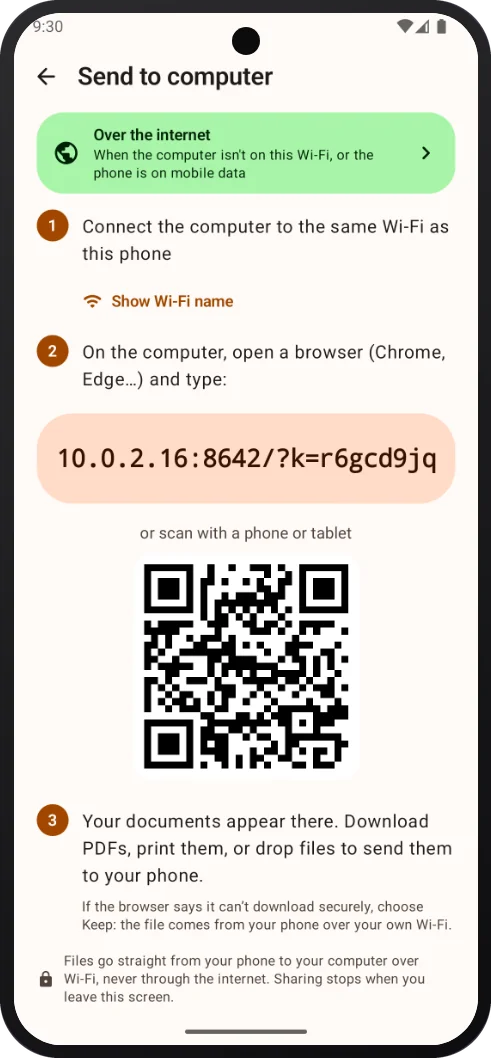
How to send files from your phone to a computer
Open Send to computer
In BharatScanner, search Tools for Send to computer, or choose Computer when you share a document.
Join the same Wi-Fi
Connect the computer to the same Wi-Fi as the phone, or to the phone's hotspot. No internet needed.
Type the address
On the computer, open a browser (Chrome, Edge…) and type the address the phone shows. The phone asks before it lets a computer in.
Download, print or send back
Your documents appear in the browser. Download a PDF, its pages as JPG, or everything at once, print from the browser, or drop images and PDFs, up to 50 MB each, to send them to the phone.
Leave when you're done
Files go straight from your phone over your own Wi-Fi, never through the internet. Sharing stops when you leave the screen, or after 10 minutes unused.
Not on the same Wi-Fi?
- Over the internet: open bharatscanner.in/send on the computer and scan its code with the phone. Your PDFs are encrypted on the phone, so only that browser can open them, and they're deleted once downloaded, or after 15 minutes.
- Share as a link: anyone can open it in a browser with a 6-digit code you tell them, for 15 minutes, 1 hour or 1 day.